
Swift (OpenStack Object Storage)#

Connecting#
Connect to a Swift (OpenStack Object Storage) installation. Choose Swift (OpenStack Object Storage) from the list of protocols.
Note
Connection profiles can be installed from Preferences → Profiles.
Authentication Context Path#
Authentication with devauth for Context /v1.0#
Legacy authentication option.
Downloadthe Openstack Swift (v1) profile for preconfigured settings.
Authentication with swauth#
Legacy authentication option.
Authentication with Keystone 2.0 for Context /v2.0/tokens#
To get the login tokens from an OpenStack Identity service no configuration change is needed. You will get prompted to provide the tenant name with a Provide additional login credentials prompt or can provide it with the username in the format <tenant>:<user>.
Bundled by default since Cyberduck version 4.4.4.
Downloadthe Openstack Swift (Keystone 2) profile for preconfigured settings.
If you have a Swift installation without SSL configured, you need an optional connection profile to connect using HTTP only without transport layer security.
Downloadthe Openstack Swift (Keystone 2 HTTP) profile for preconfigured settings.
Authentication with Keystone 3.0 for Context /v3/tokens#
Bundled by default since Cyberduck version 4.8.
Downloadthe Openstack Swift (Keystone 3) profile for preconfigured settings.
If you have a Swift installation without SSL configured, you need an optional connection profile to connect using HTTP only without transport layer security.
Downloadthe Openstack Swift (Keystone 3 HTTP) profile for preconfigured settings.
You will get prompted to provide the project name with a Provide additional login credentials prompt or can provide it with the username in the format <project>:<user>.
Regions#
Multiple regions are supported when authenticating with a Keystone (2.0) identity endpoint. Containers from all regions are displayed in the browser. Choose View → Column → Region to display the region in the browser.
Container#
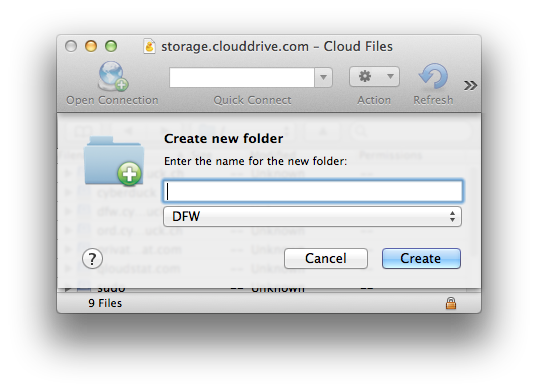
On your first login, you will need to create at least one container (folder) to put your content in. Choose File → New Folder (MacOS ⌘N Windows Ctrl+N) and specify a name. After the container has been created, you may start adding your content to the storage platform.
Cyberduck CLI#
Connect with Cyberduck CLI using the default connection profile using authentication with Keystone 2.0 for context /v2.0/tokens with
duck --username OS_TENANT_ID:OS_USERNAME --password PASSWORD --list swift://SWIFT_KEYSTONE_AUTH_SERVER/CONTAINERNAME
Refer to the Cyberduck CLI documentation for more operations.
Third-Party Providers#
Temporary URLs#
A private object stored in OpenStack Swift can be made publicly available for a limited time using a signed URL. The signed URL can be used by anyone to download the object, yet it includes a date and time after which the URL will no longer work. Copy the signed URL from Edit → Copy URL→ Signed URL.
Rackspace A value must be set on your account metadata for
X-Account-Meta-Temp-Url-Key.
Large Uploads#
Supported using Static Large Object segmentation. Files larger than 2GB are uploaded in segments using the default threshold. The upload chunk size is 100MB by default with a maximum of 5 concurrent connections. The number of connections used can be limited using the toggle in the lower right of the transfer window.
Large uploads can be resumed when interrupted.
Distribution (CDN)#
You can CDN enable the container using File → Info → Distribution (CDN) if supported by the provider.
Preferences#
Large Upload Segment Size#
You can set the hidden option openstack.upload.largeobject.size for the segment size in bytes (Issue #9134).
Known Issues#
Authentication failure with ec2-credentials(Issue #7754)
Multiple OpenStack Swift Containers in Different Regions with the Same Name#
Browsing containers will be erratic. As a workaround, browse a region by using a connection profile limited to a single region as with Rackspace Cloudfiles region profiles.